
Add New Project
Fill in the details and upload photos. The project will appear on the Projects page immediately after saving.
Edit Project
Select a project below to edit its details or photos.
No projects yet.
Create a project first using the Projects › Create panel.
Delete Project
Permanently removes the project and all its photos. This cannot be undone.
No projects yet.
Add Before & After Slide
Upload a before photo and an after photo, add a short title, and a composite slide will be created and added to the homepage slideshow automatically.
Delete Slide
Permanently removes the slide and its composite image. This cannot be undone.
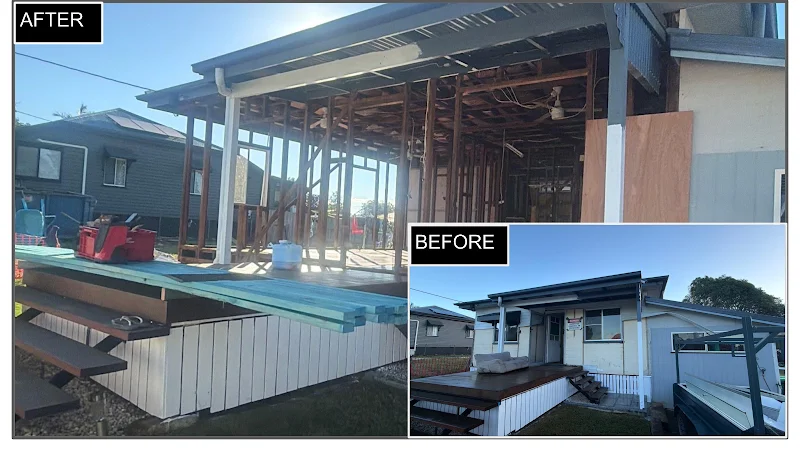 Slide 3
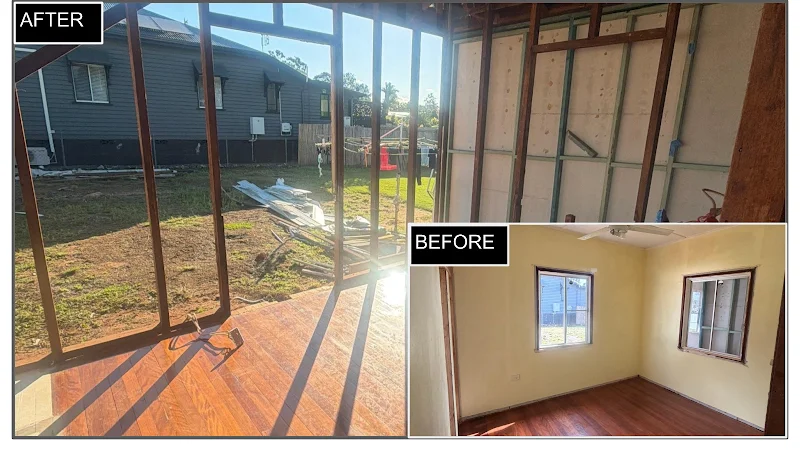 Slide 6
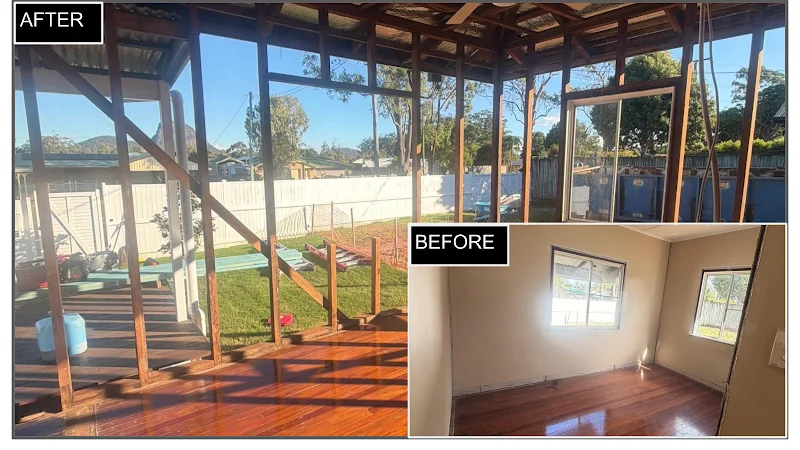 Slide 7
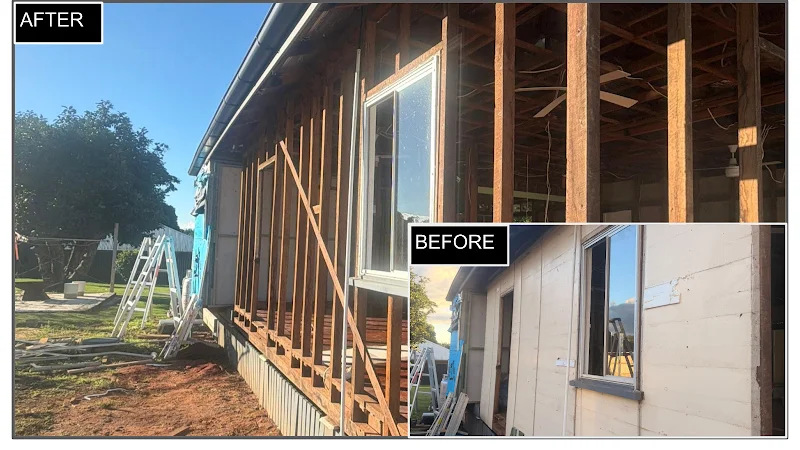 Slide 8
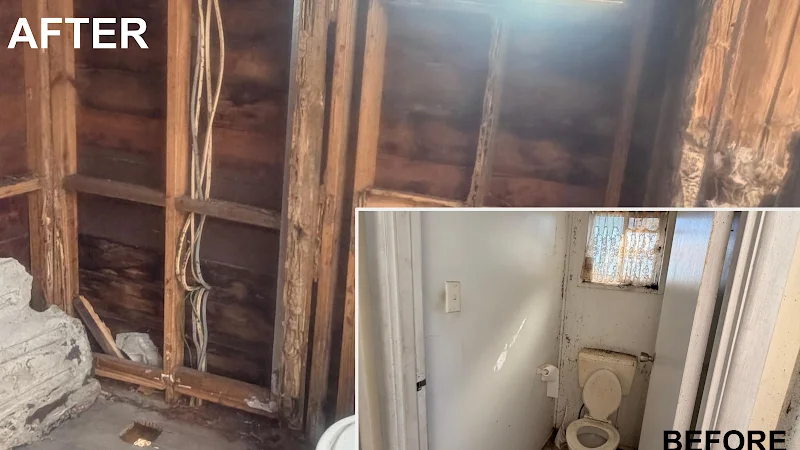 Slide 10
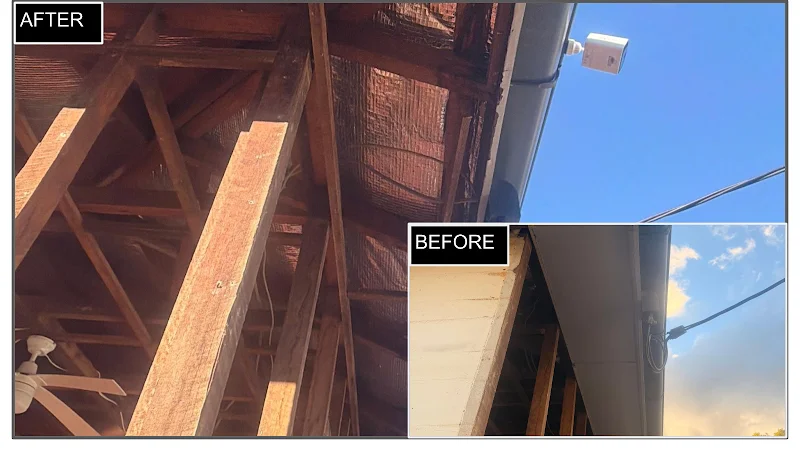 Slide 9
Slide Order
Drag the slides into the order you want them to appear on the homepage. The top of this list = the first slide shown (left to right). Click Save Order when done.
Import to Gallery
Import slides from Google Slides into your image gallery (assets/images/gallery/). From there you can select them when creating slides or projects.
Gallery Images
All images imported from Google Slides. 6 images in gallery.
Slide 10
2026-08-16 21:48:01
Slide 3
2026-08-17 02:02:36
Slide 6
2026-08-17 02:02:43
Slide 7
2026-08-17 02:02:46
Slide 8
2026-08-17 02:02:47
Slide 9
2026-08-17 02:02:59
Adjusts output dimensions proportionally. Image is resized on disk when you click Update.
Logo
Upload replacements for any logo variant. Only the files you choose will be replaced — leave others empty to keep the current version.